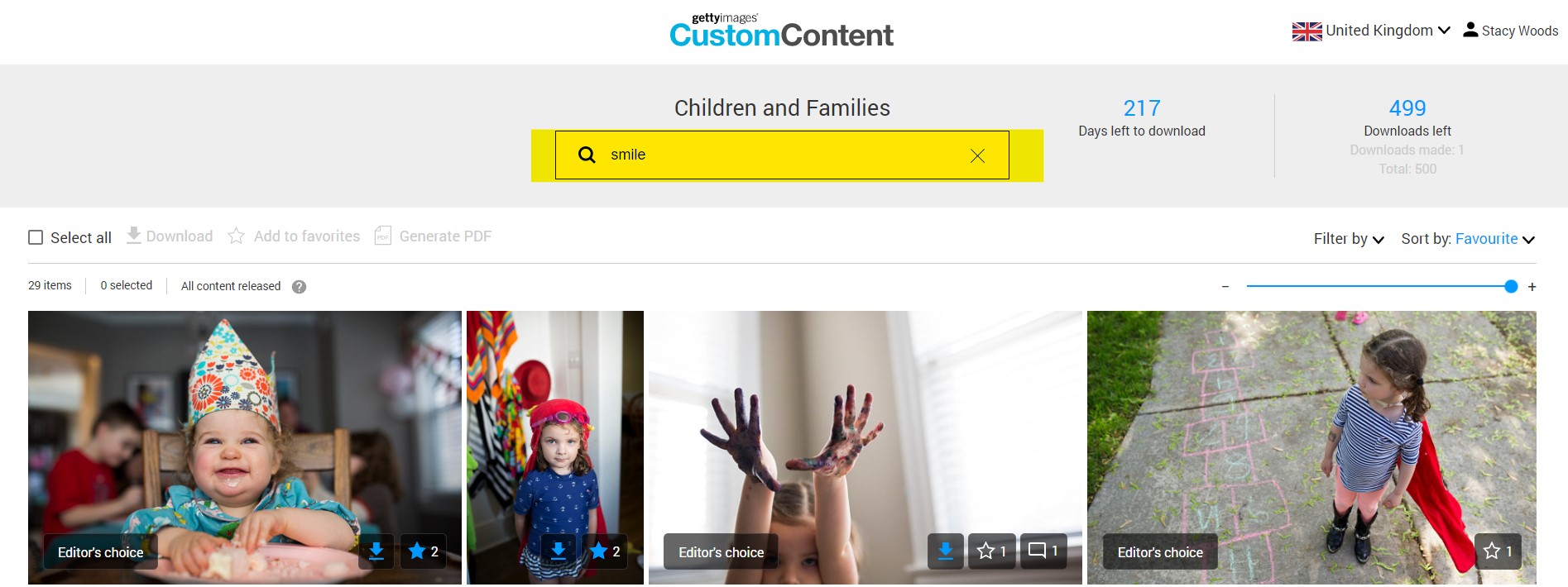
When your brief is ready, you will receive an email notification inviting you to login and view your content.
Editor’s Choice
You'll see our favorites (Editor's Choice) sorted to the top of the page. To ensure you've seen the full take, continue to scroll and click "Show More" at the bottom of the page.
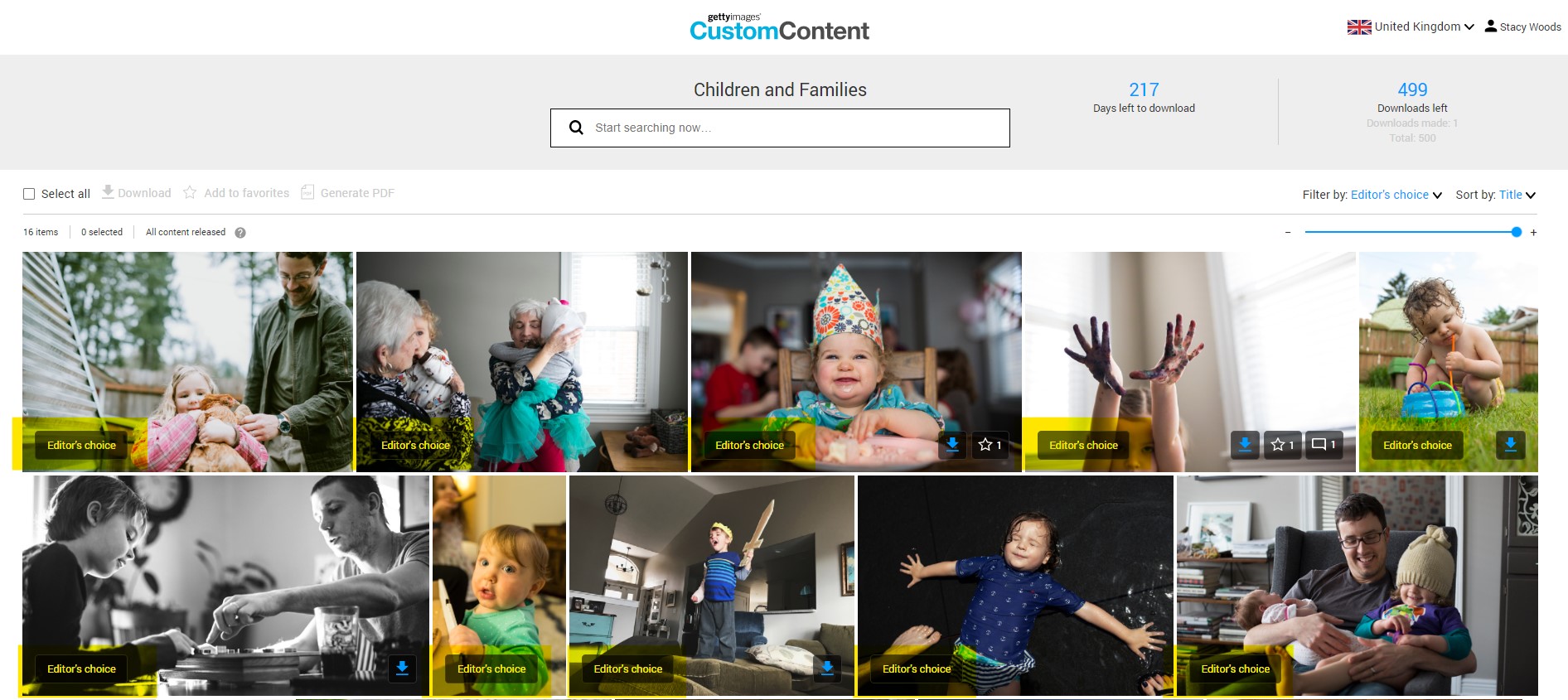
Favorites
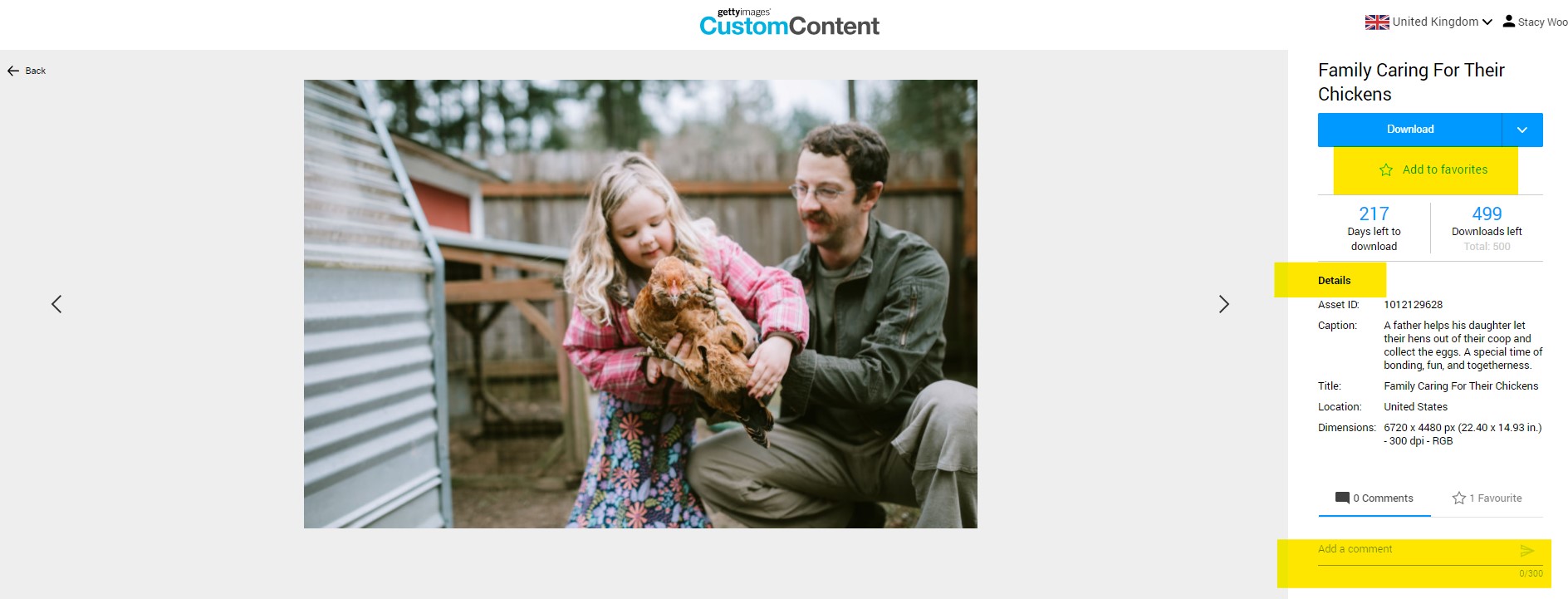
You and your colleagues can select your favorite images or clips. The favorite star icon will show the full count and you can sort by favorites to see the most popular choices.
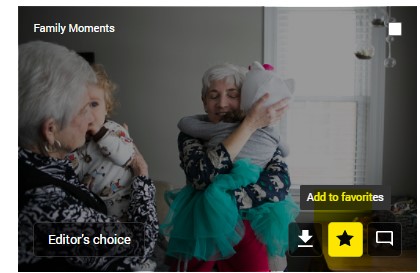
Comments
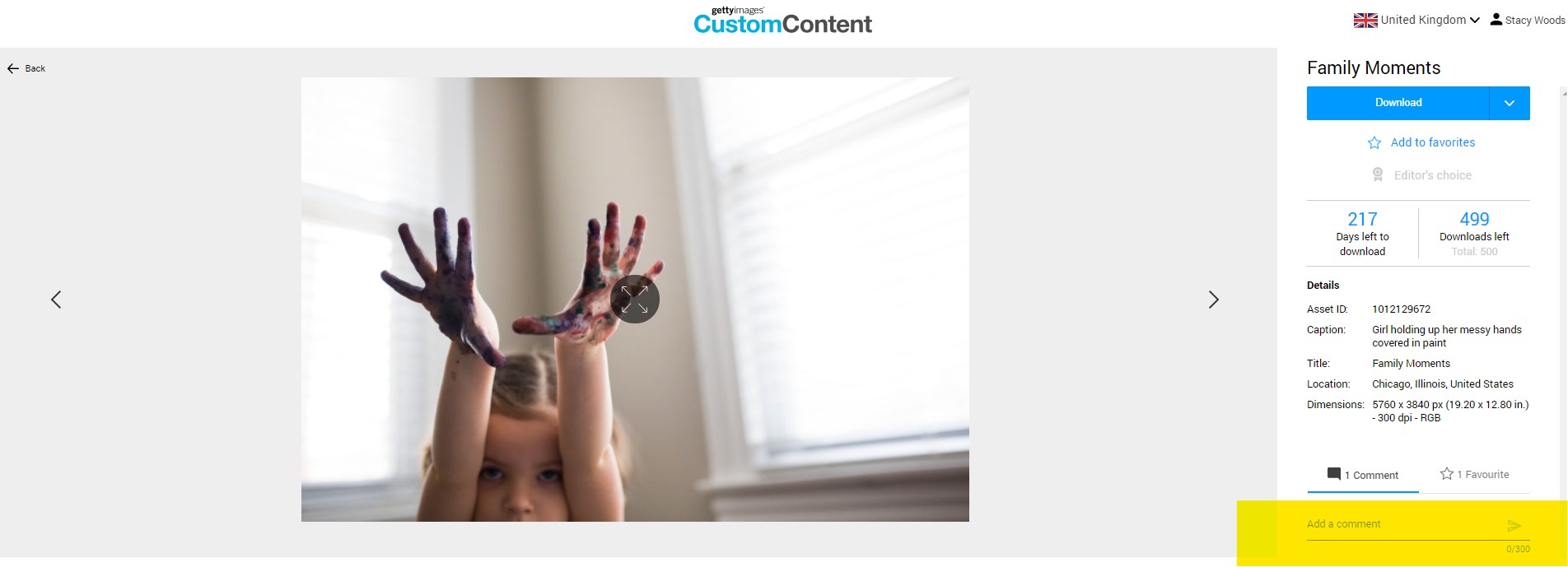
You can also leave comments on the asset detail page. Collaborate within the Custom Content platform and let your full team participate.
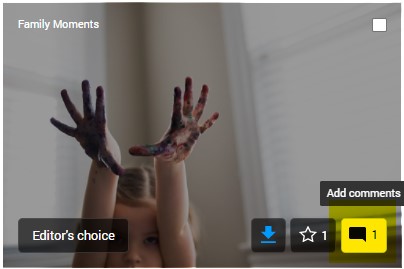
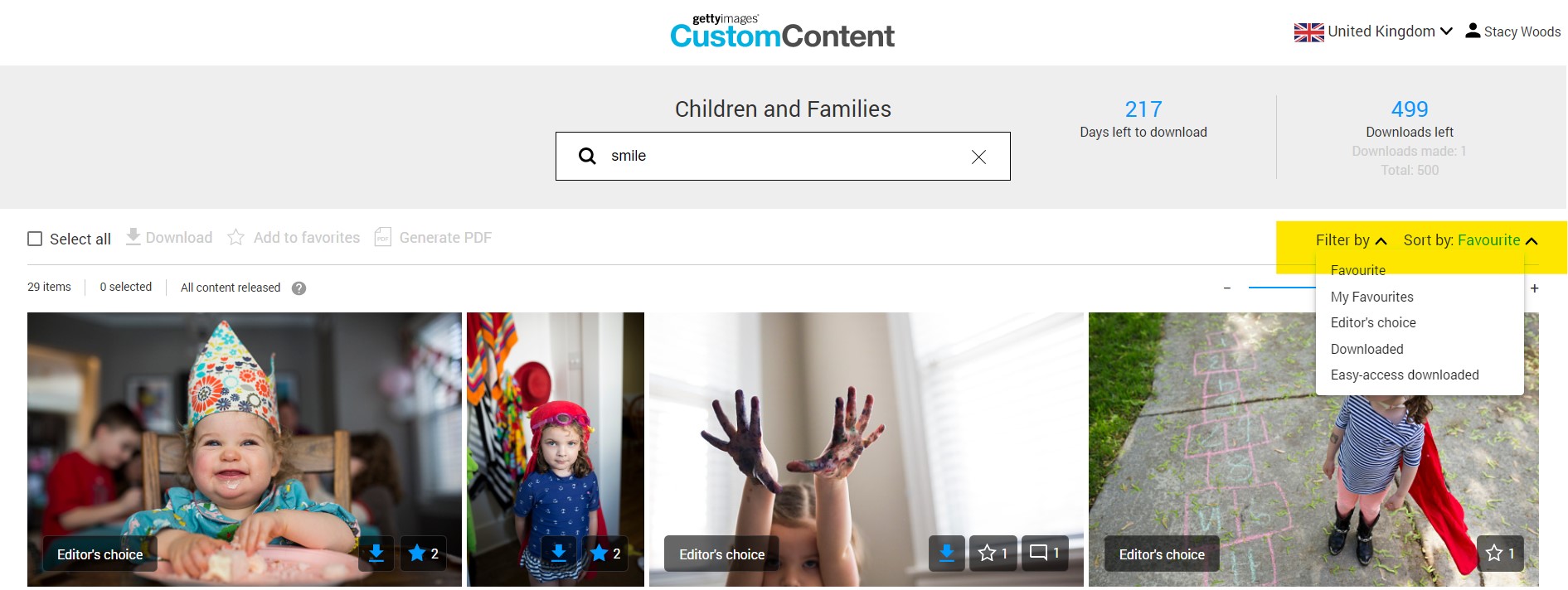
Filters and Sorting
Filter and Sort features allow you to view most popular or more recent shots or show only your favorites.
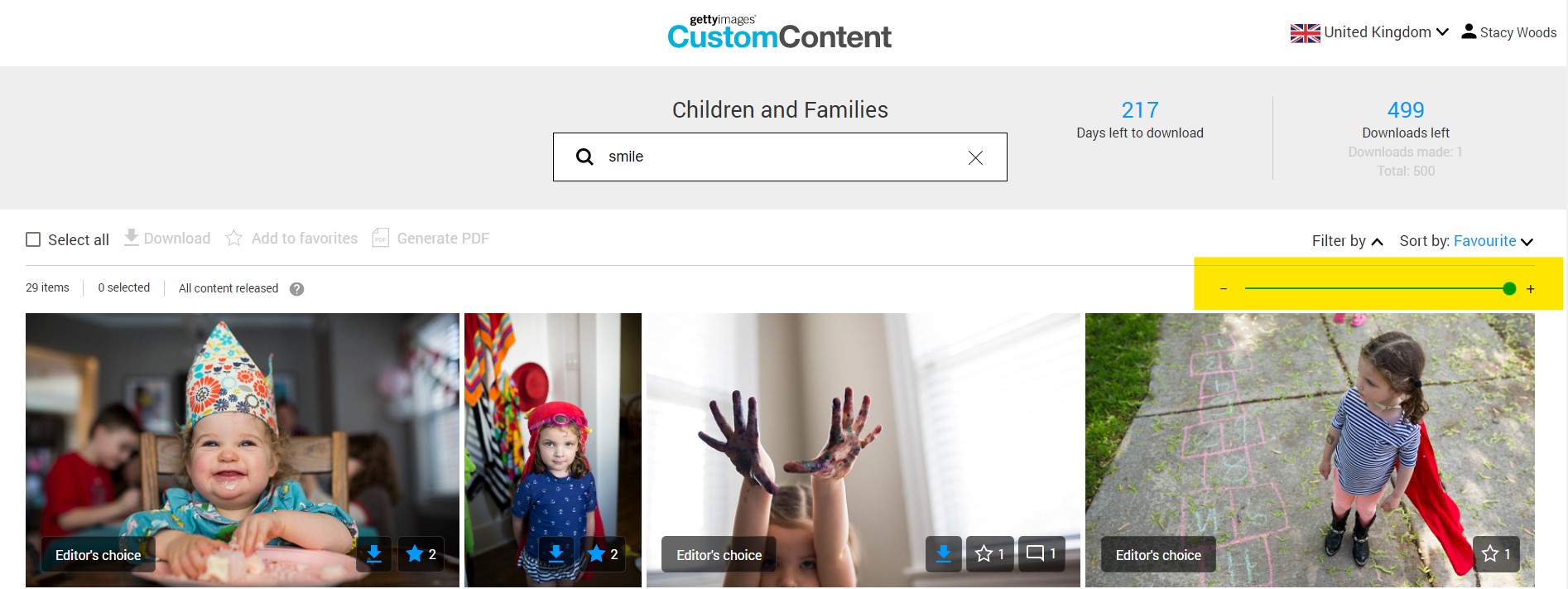
Customize your view
Depending on your preferred view, you can resize the thumbnails in your gallery.
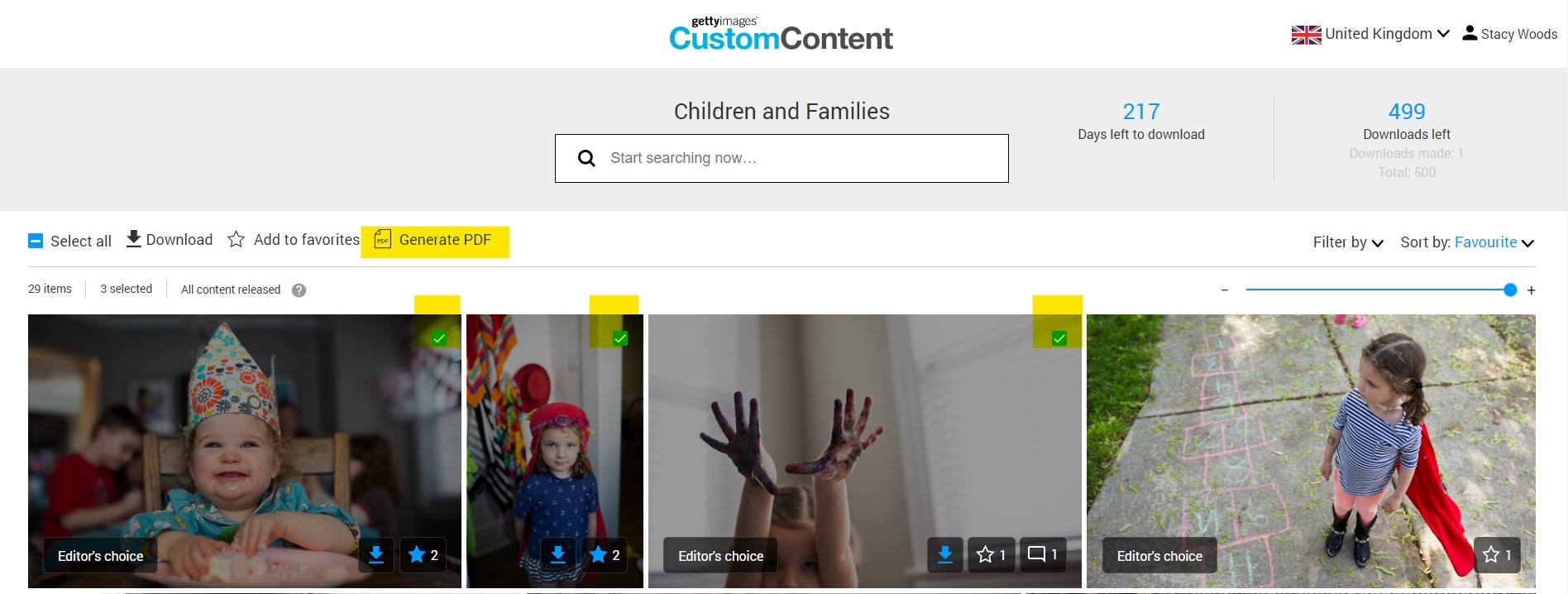
Generate a PDF
This will enable you to review content outside of the Custom Content platform. Simply select the images or videos you want to include and click Generate PDF. You will have the downloaded PDF you can then share.
Asset detail page
This page provides more information, such as location and description, for an image or a clip. From this page, you can also comment, add to favorites, and download the asset.
Search
Search within the brief is available on visible metadata included on the asset detail page, such as location or description text. For example, if you’d like to see all content that includes ‘smile’ in the description, type that in the search bar to view the results.